Website powered by

Lowlife Breakdown: Part 02 - Neon

Making Of / 13 May 2019


Let's talk about neon...

We're breaking down more LowLife today and the subject of the moment is NEON.

When I first started thinking of the scene all I really wanted was to make something I could have fun creating and I wanted it to be kind of cyberpunk-y. Neon plays a key part in that look so I planned to have a lot of it in my scene. Let's go


Creation

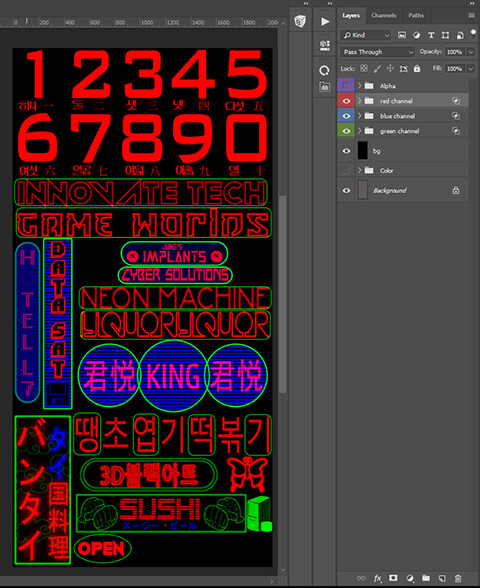
So first of all, the neon you're seeing here is rendered with just alpha cards with an alpha test shader. You'll be relieved to know the texture itself is a lot simpler than the Uber Trim and so is the shader. Here's the texture:
R, G, and B all over my body

As you can see, like my previous grunge maps, it's also channel packed. On the right you can see the layer groups, color coordinated to help me keep track of things. For the channels, I generally used Red for lettering, Green for borders, and Blue for backgrounds or any third element. I also used Alpha for extremely rare circumstances (like, the one time) when I needed a fourth color. I made this mostly in Photoshop, using grouping and blending options to set the channel. You can do this by right-clicking on any layer or group and selecting "Blending Options". Under "Advanced Blending" you can find checkboxes for channels:

'Channels' is my 30th favorite word

Then turn off the channels you don't want for that group. It's super easy

Once that's made it's over to UE4 to work on the shader.

Shader


Well that's long image.

This looks more complicated than it is. I would say that: it ain't.

You're seeing four basic parts

  • source textures with transforms (including a bump offset parallax)
  • parameters for recoloring each channel mask
  • different neon animations
  • parameter switches for blending animations


Source textures
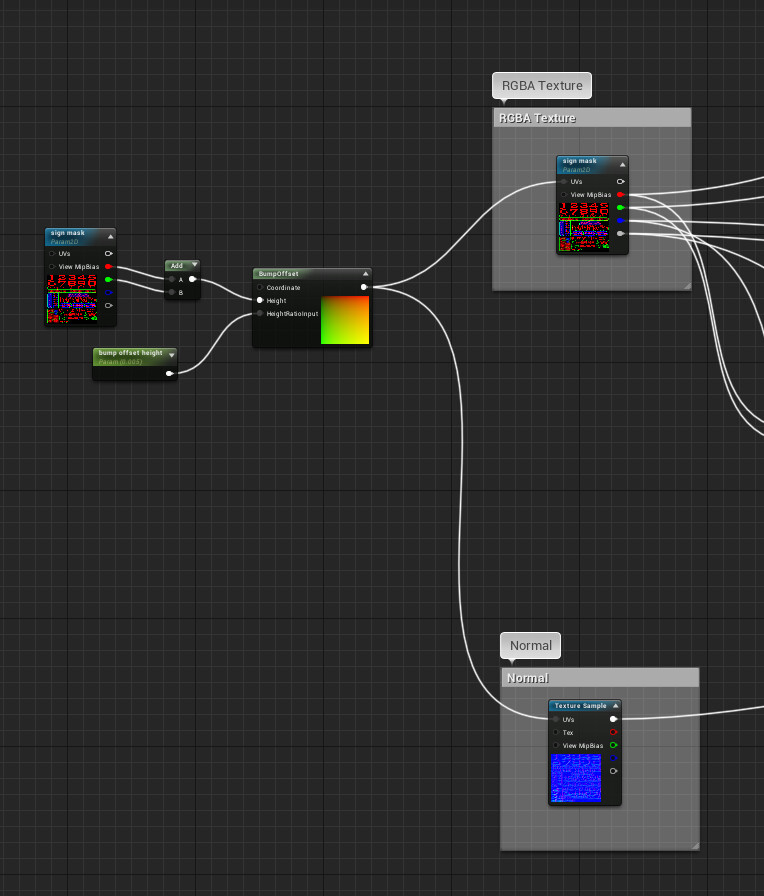
Nothing complicated here! The texture, it's normal, and a bump offset driven by the same texture. As simple as it gets.


Parameter Colors

Parameterized colors for the signs. Also simple.


Animations
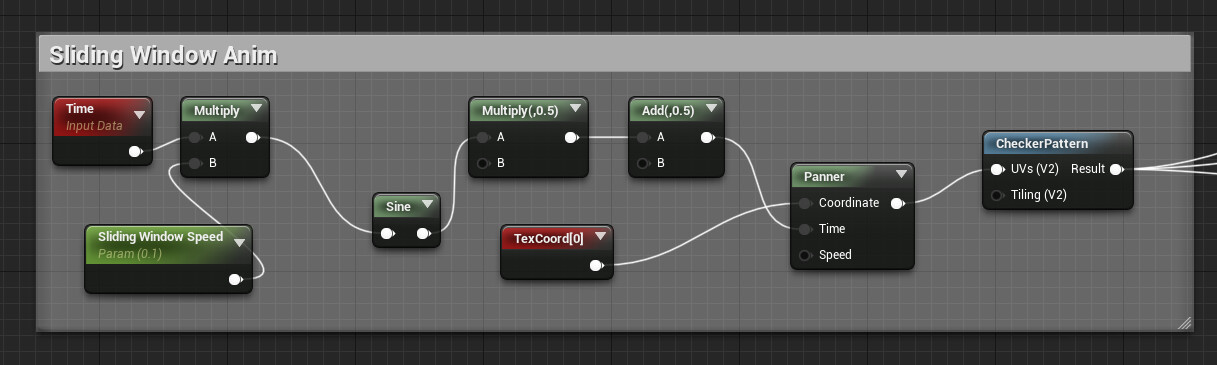
Some setup for animating the emissive of the shader. I have a few of these in the shader. Also... SIMPLE


Switches
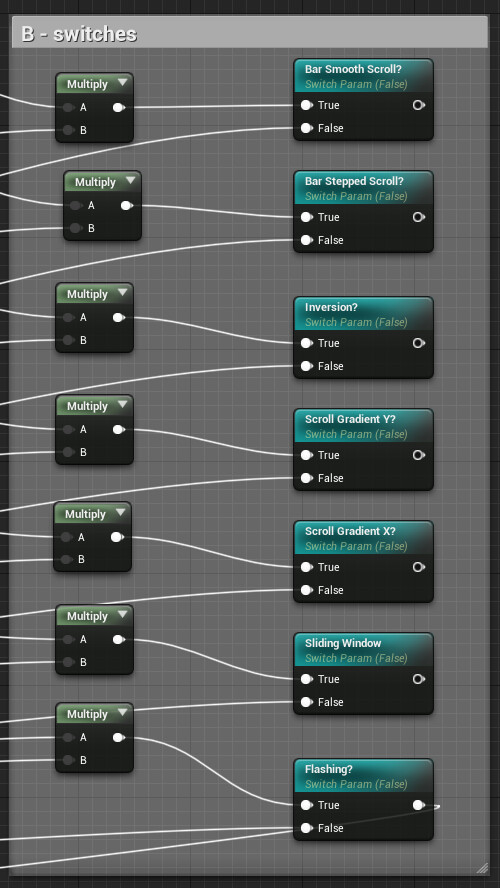
Parameter switches for the animations. SIIIIMPLE


Using this setup, I can make a lot of controls for my neon with the material instances. If nothing else, I wish I had fewer instances. I made a bajillion just for controlling signs and it became a bit of a pain to work with. 
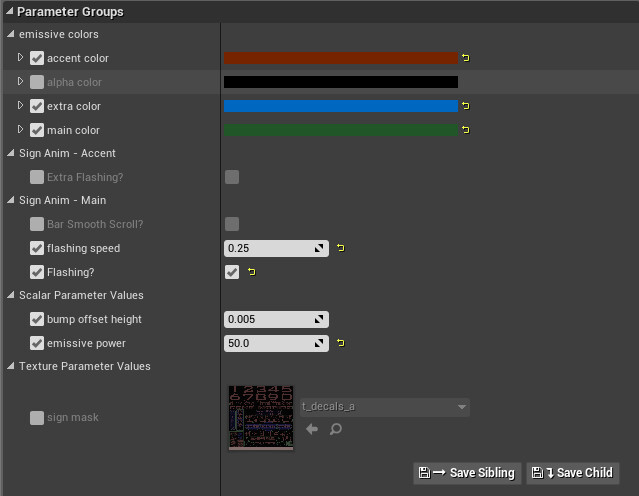

Ol' Parameter Pitts, that's what they call me


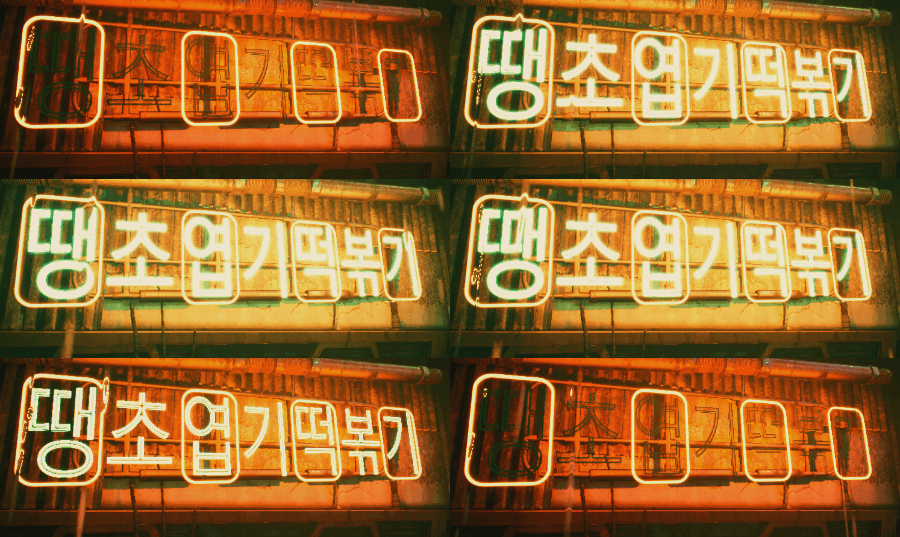
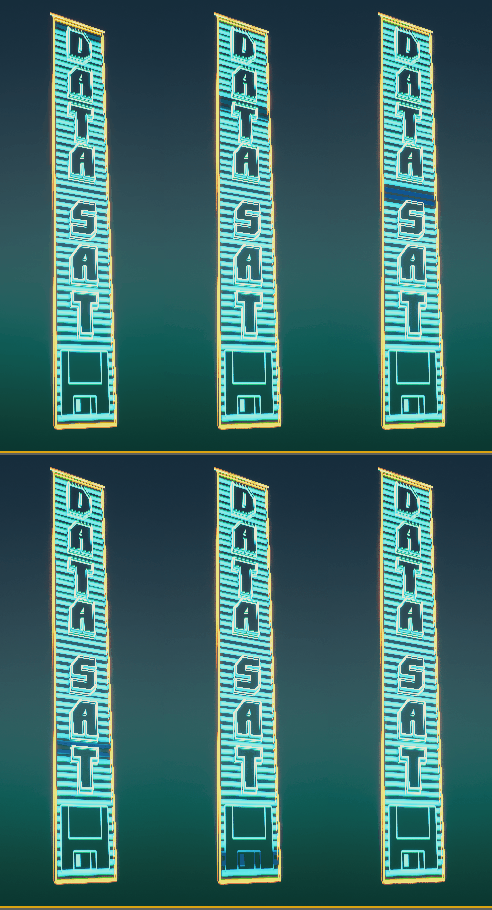
For the geo, I created mostly simple cards. Some signs also had metal backings created using the uber trim. Tbh, I really only scratched the surface here and next time I'd like to take my treatments further. Even so, with my simple setup I could get effects like this with just a few parameter customizations
I think that's about it for this. If you're interested in seeing a particular breakdown, just ask and I'll do what I can for next time.

Thanks for reading and see ya next week!
Lowlife Breakdown: Part 01 - Uber Trim

Making Of / 06 May 2019


Sorry for the absence! Now let's get to work.

I'll be adding new parts once a week. We'll start with the uber trim since that seems to be what most are interested in.


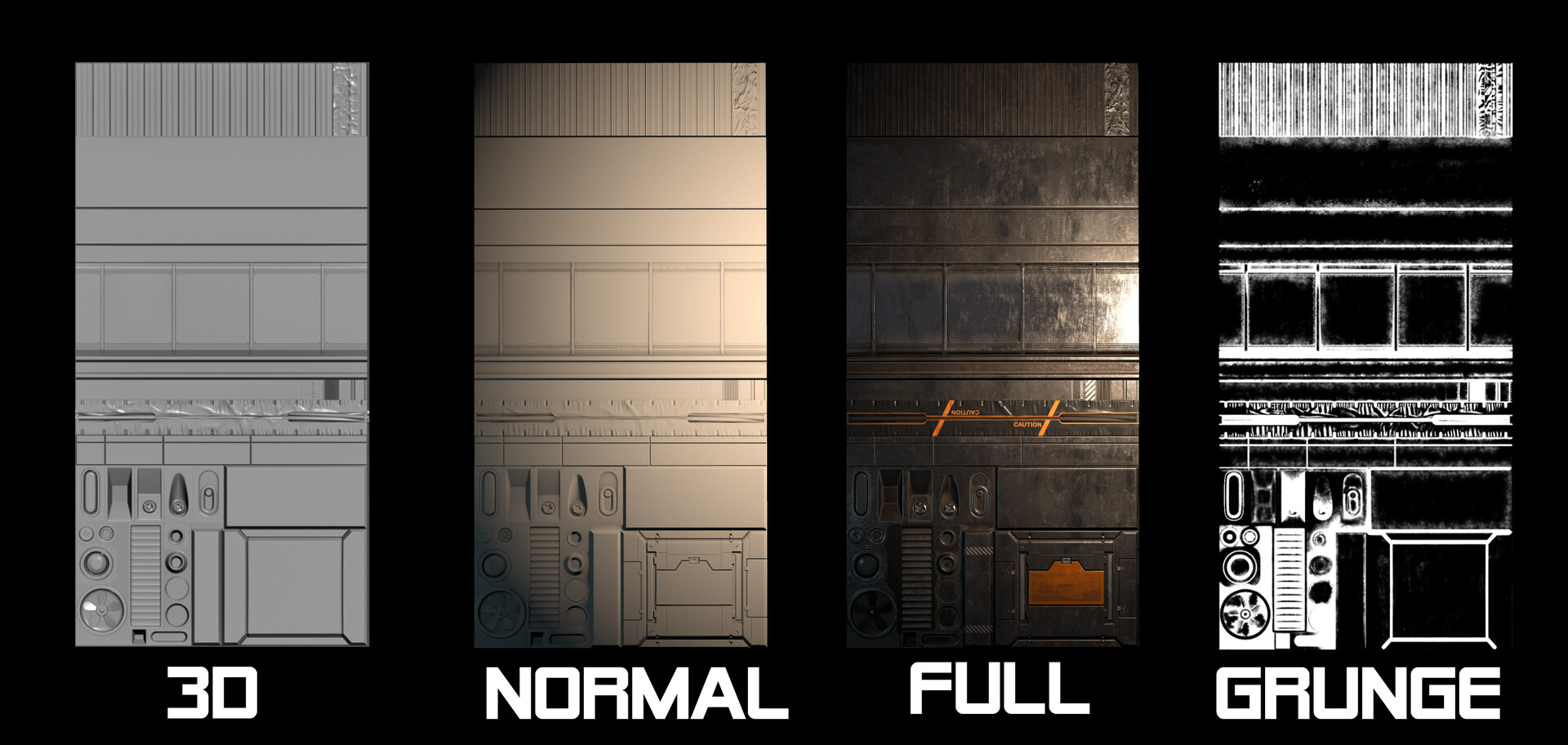
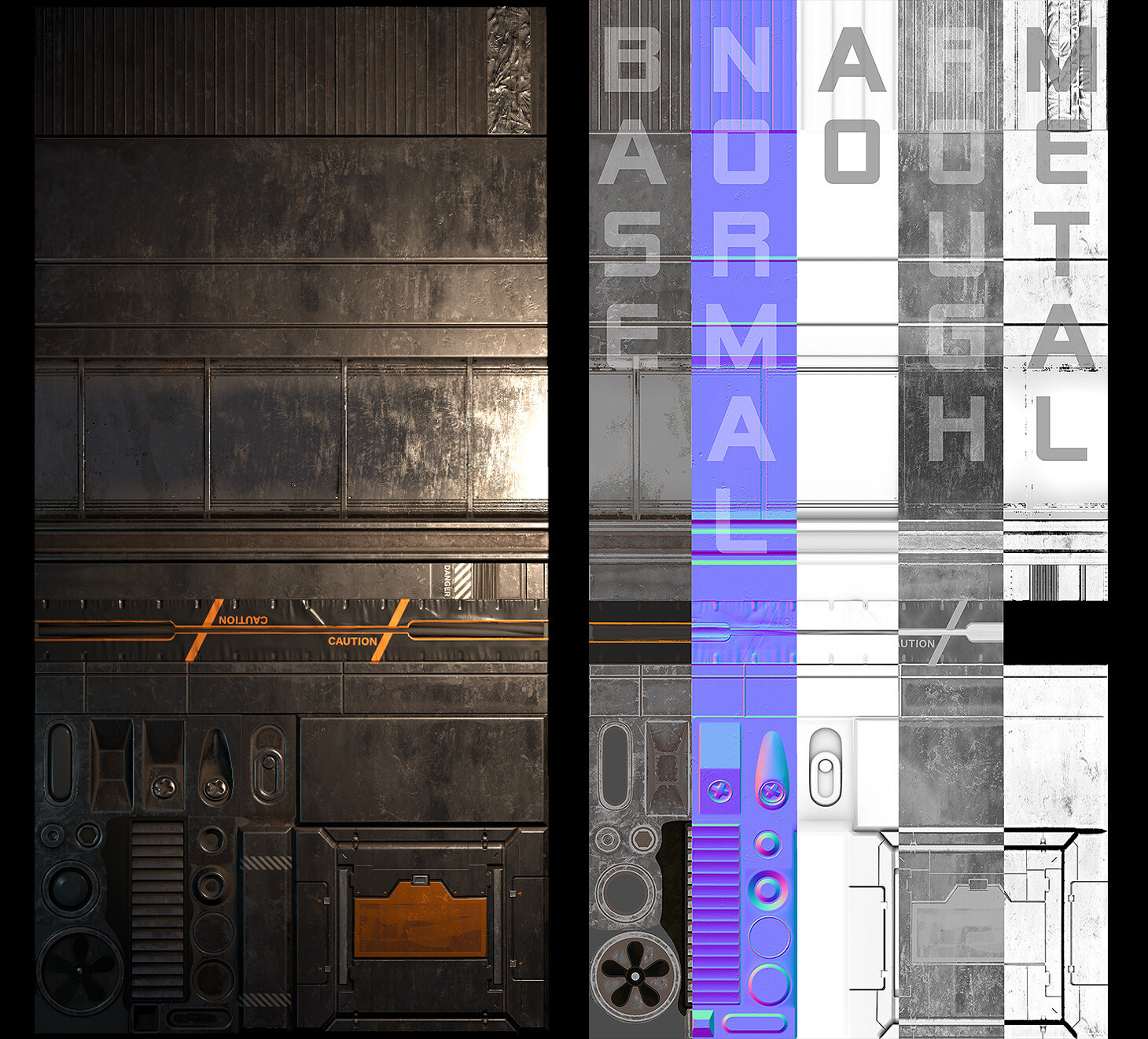
First: here's the full trim sheet.


This is the full texture and the full texture set.


Now let's see how I got there.


Planning


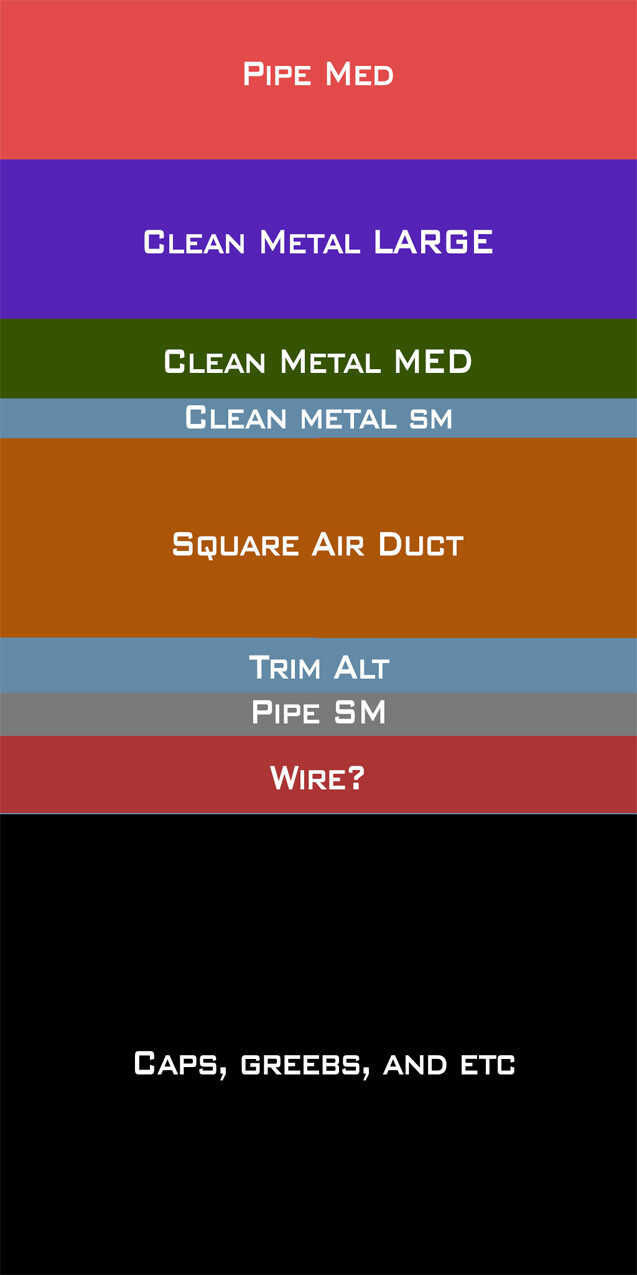
In my planning I desired clean, readable, and multi-use trims with different bevels, and pretty even texel density. For me this meant planning different sizes for trims and cap trims. I made this blockout early on and stuck pretty closely to the sizes here. The final shapes on the trim come from a wealth of reference of alleys and the structures you find in them. All in all, it's pretty no frills which is exactly what I wanted. The real strength of this trim is its versatility. The end result looks fine, but really it's just the base. In Unreal, I'll let the shader take over and make it really useful.

Creation


This is pretty straight forward. The sheet itself is modeled in 3D then baked down and painted in Substance Painter. Some of this work was also done in Zbrush where appropriate like sculpting organic folds. I then added some micro height details and decals in Painter to get the final normal map. When ready for export, I used a custom preset that creates a channel pack map (I call this AORM, R=AO, G=Roughness, B=Metalness, and there's an optional Alpha used in this case for a separate height-based Grunge generated using the height and normal of the the trim sheet geo.) At the end of that, I have a base color, a normal map, and an AORM texture with a height-based grunge packed in the alpha.


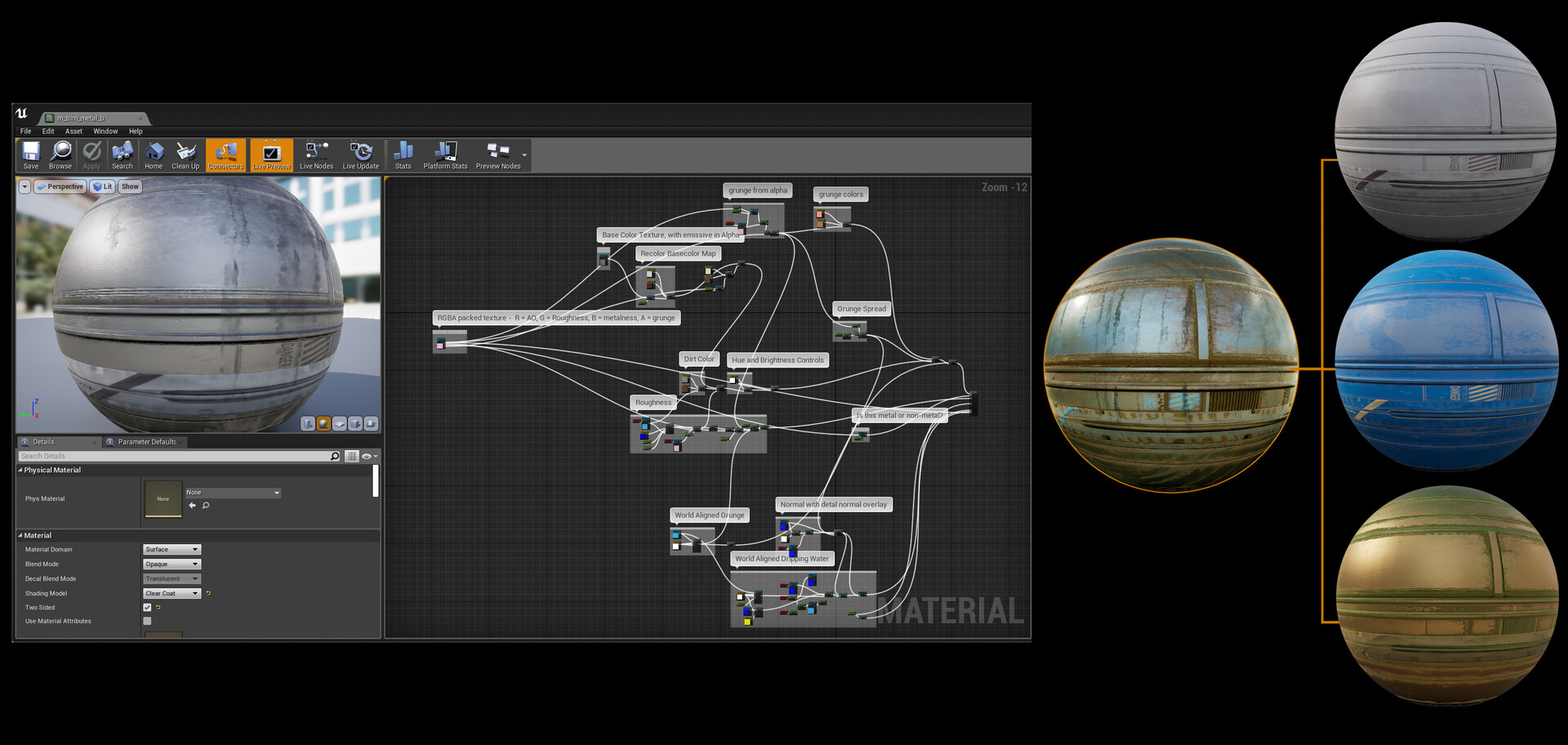
Shader


Here's where magic happens.

So in the planning stage, I kept things pretty readable and avoided heavy grunge passes. Here I add those passes. 

Adding grunge in the shader has some neat benefits. I keep grunge type and colors consistent among a large number of assets, I can change these parameters as my scene evolves, and I can have a layer of unified density of detail. (You may notice there's also a "world aligned dripping water". This is an extra layer to support rainfall that I didn't end up using on most of the trims and I'll cover that in a later post. This is also why in this screenshot, the material is set to Clearcoat. Clearcoat is not at all necessary for the trim to function.)


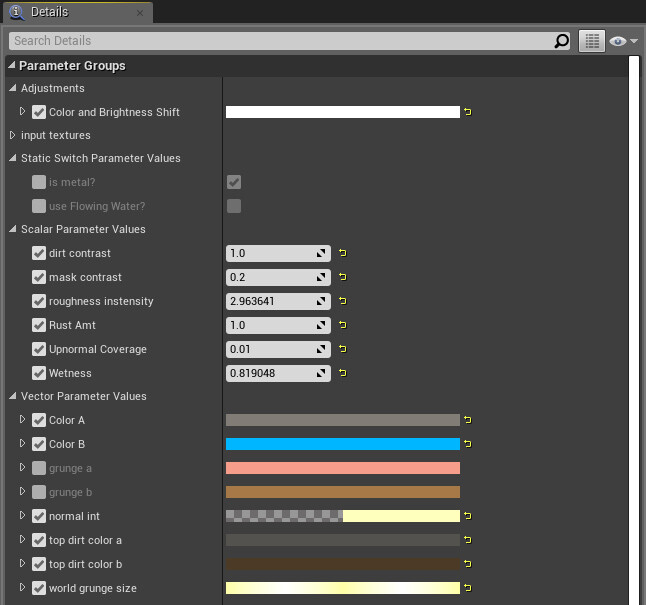
I also add controls for that grunge in the form of exposed paramters. I care about controlling the amount of grunge, density, grunge mask edge contrast, upnormal spread, and color of every grunge pass so I expose them as parameters. I also expose roughness and metalness. Separate color controls allow me to recolor grunge or the trim itself. In this way I can produce materials like bronze, gold, iron, etc with grunges that resemble mud, dirt, rust, light moss, or no grunge at all. With the metalness control, I can easily switch the shader to be a non-metal giving me options for plastics, rubber, etc. Add some roughness control, and I get essentially a full set of in-shader controls to help keep any change I do PBR legal. (Again you see "use Flowing Water" related to rain controls which I'll cover in a later post.)


For other grunge in the scene, I used channel packed grunge maps. RBG all have different grayscale tileable noises made in Substance Designer. These grunge maps are key to just about every material in my scene because they're used for a lot more than just adding grunge. They are also being used to break up gradients and add res to otherwise lower res masks. 


The grunge passes are as follows:

A Height-based grunge (fits the normal map shapes. Reminder that you can scroll up to see this mask)

An Upnormal Grunge (sits on top of the object)

A World aligned texture (mostly for streaks/directional grunge on the sides of objects)

The world aligned and upnormal grunge use different RGB channels of the same texture. The height-based grunge is channel packed in the alpha of a texture I'm using anyway (in this case the alpha of the AORM of the trim texture).


This is the grunge texture used for the vast majority of world-aligned and upnormal grunge:


So here's an example of these things in action.


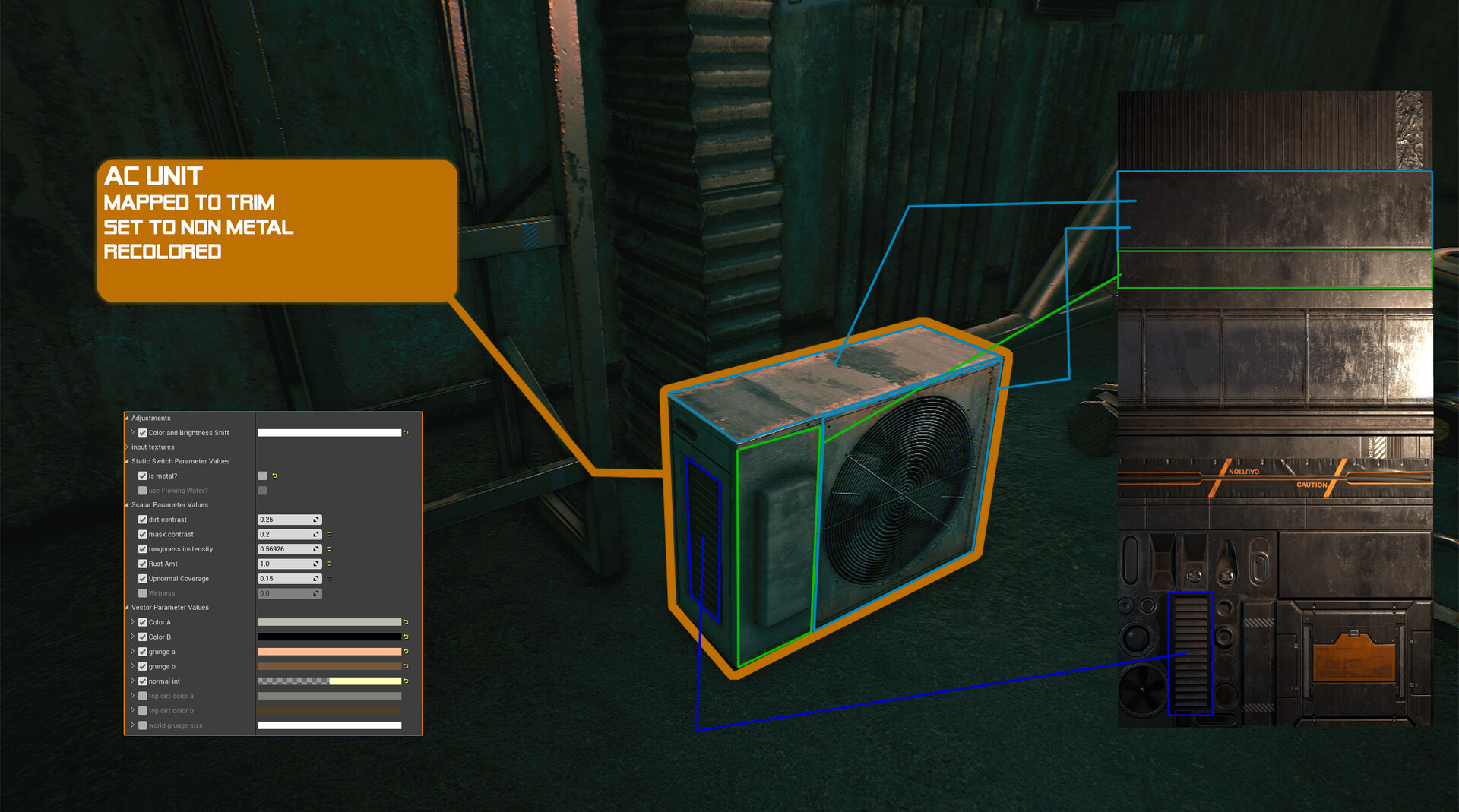
First the air conditioner is mapped to different areas of the trim. Here are some callouts. You can see that I changed the color of the trim to be off-white and reduced the roughness of the "painted" areas. The edges of the mesh look different because I'm using the height-based grunge to control what goes on in there. This means that as long as I mapped it appropriately to the trim, I get a different treatment for the edges of my object to play with things like edge wear in the shader. The grunge pass here is pretty light. You can see some sitting on top of the AC unit and a bit on the sides. These are world-aligned so they show up based on the position of the object in the scene. In my key shot of the window (https://www.artstation.com/artwork/Z5RPlm , "Still Shot 3") the grunge appears to leak from inside the fan. This is merely me positioning the AC unit mesh to make sure the world space grunge would layer over it that way. And in case you're wondering, the front grate comes from a separate atlas with alpha test.


Here are some examples:


And here's some grunge positioning:


I think that's about it for this. If you're interested in seeing a particular breakdown, just ask and I'll do what I can for next time.

Thanks for reading and see ya next week!